

Vimonto Deploy tells you when something happens on your servers and sites: a deploy went live or failed, a monitor crossed its threshold, a backup failed or a new server is ready. Notifications reach you in three ways: by Email, In-app in the bell at the top of every page, and Push on your phone or computer, even when Vimonto Deploy is not open.
You choose per kind of notification which of them you want, and you can mute servers you don't follow. These settings are personal: they belong to your account and apply to every organization you are a member of.
Read your notifications in the bell
The bell sits in the top bar of every page. A number on it shows how many notifications you haven't read yet (9+ when there are more than nine).
Click the bell to see your latest twelve notifications, newest first. Each one has a title, often a short explanation (such as the error of a failed deploy), and how long ago it happened. Unread ones are in bold with an orange dot. Notifications are kept for 90 days, read or not, and then deleted.
- Click a notification to mark it as read and open the page it is about, such as the deploy, the server's monitoring or the site's domains.
- Click Mark all read to mark every notification as read.
- Click the settings icon next to it (Notification settings) to open your settings.
New notifications appear in the bell as they arrive; you don't have to reload the page. They show in your own language, even when a colleague's action caused them.
What can you be notified about?
| Group | Notification | When | On by default |
|---|---|---|---|
| Servers | Server ready | A new server is set up and ready to use. | In-app |
| Servers | Setting up a server failed | Something went wrong while setting up a server. | Email, in-app and push |
| Servers | Deleting a server failed | A server could not be deleted at its provider. | Email, in-app and push |
| Servers | Monitor alert | CPU, memory, disk or load crossed a monitor's threshold, and again when it recovers. | Email, in-app and push |
| Servers | Heartbeat missed | A scheduled job did not check in on time, and again when it is back. | Email, in-app and push |
| Servers | Backup failed | A database backup could not be made. | Email, in-app and push |
| Servers | Recipe finished | A recipe you ran has finished on all its servers. | In-app |
| Servers | SSH key added or removed | Someone put an SSH key on a server or took one off. | In-app |
| Servers | SSH login | Someone logged in to a server over SSH, other than Vimonto Deploy itself. See SSH logins. | Email, in-app and push |
| Servers | Restart needed | Updates installed on a server need a restart to take effect. Once, when it starts. | In-app |
| Sites | Deployment succeeded | A deploy went live. | In-app |
| Sites | Deployment failed | A deploy failed; the live version stayed as it was. | Email, in-app and push |
| Sites | Certificate failed | An HTTPS certificate could not be issued or renewed. | Email, in-app and push |
| Sites | Site feature failed | Switching on Horizon, Reverb or another site feature failed. | Email, in-app and push |
| Sites | Site down | A site failed two uptime checks in a row. | Email, in-app and push |
| Sites | Site back up | A site that was down answers again. | In-app |
| Sites | Vulnerable packages | A deploy found new critical or high vulnerabilities in a site's Composer or npm packages. See dependency audit. | Email, in-app and push |
| Organization | New member | Someone accepted an invitation to the organization. | In-app |
| Organization | Payment failed | A payment for Premium failed. | Email, in-app and push |
| Account | Referral became a customer | Someone who signed up through your referral link paid for Premium, and your discount went up. | Email and in-app |
| Support | Support replied | Support answered a ticket you opened. | Email, in-app and push |
The rule behind the defaults: failures come by email, in the app and as a push notification; good news and routine only in the app. Push only reaches you once you have turned it on for a device, see push notifications.
Who receives a notification?
A notification about a server or one of its sites goes to every member of the organization who can see that server, whatever their role, including the person whose action caused it. When your organization uses teams, members only hear about the servers their teams give them access to.
Some notifications go to fewer people:
- Recipe finished goes only to the person who started the recipe run.
- New member goes to every member except the person who just joined.
- Payment failed goes only to members who manage billing: owners and administrators.
- Referral became a customer goes only to the person whose referral link was used.
- Support replied goes only to the person who opened the ticket.
Each person then gets it through the channels they chose, so one colleague may get an email while another only sees it in the bell.
Choose how you are notified
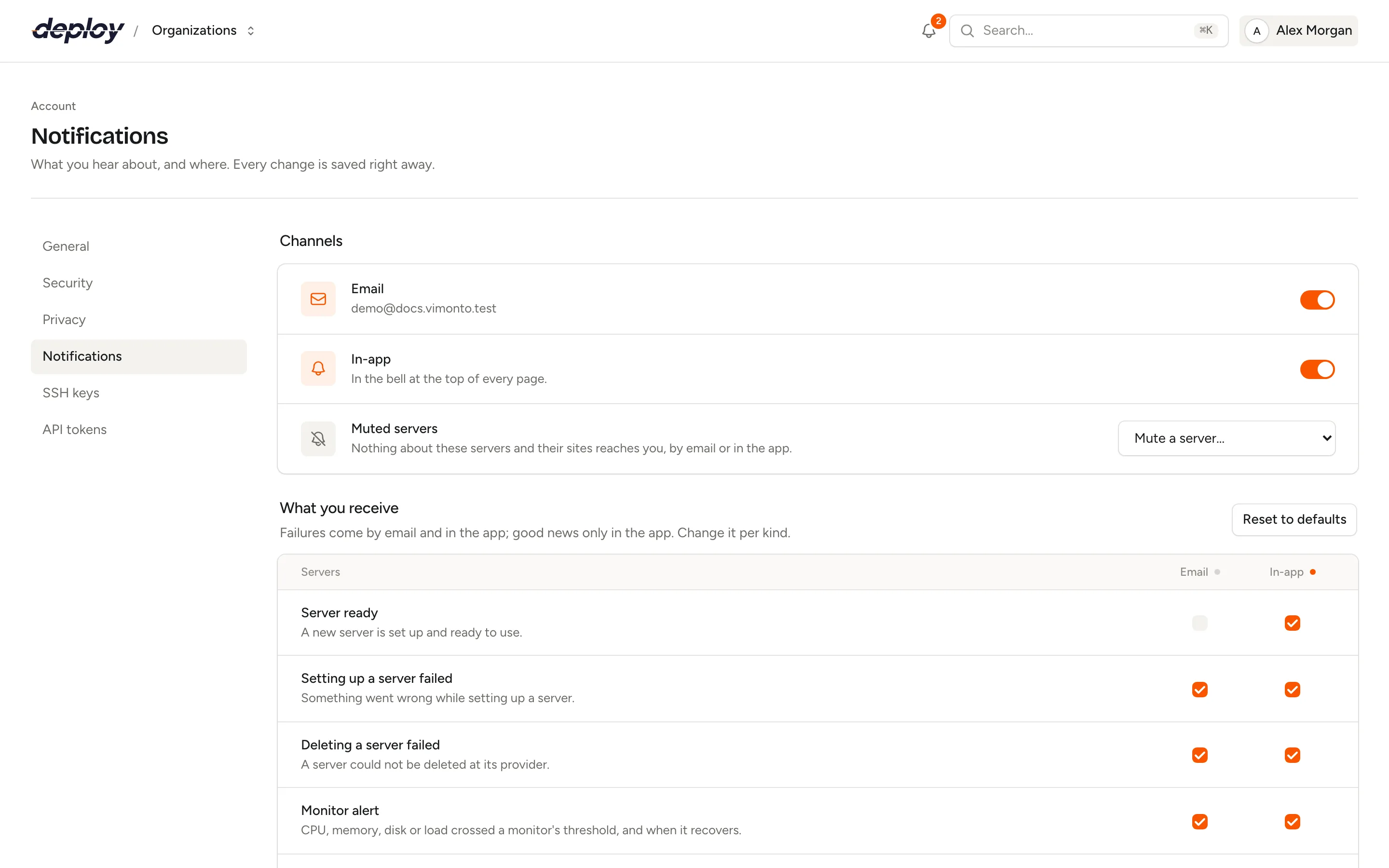
- Open the account menu at the top right and choose Account settings → Notifications, or click the settings icon in the bell.
- Under Channels, switch Email, In-app and Push on or off. Emails go to your account's email address; push notifications go to the devices you turned them on for. With a channel off, nothing reaches you that way, and its column below is greyed out.
- Under What you receive, check or uncheck Email, In-app and Push for each kind of notification.
Every change is saved right away; there is no save button.
- Click Email, In-app or Push in the header of a group (Servers, Sites, Organization, Account, Support) to switch that channel on for the whole group, or off when it is already on for all of them.
- Click Reset to defaults to go back to the defaults in the table above. This also unmutes all servers and switches all channels on again. Your devices stay as they are.
Mute a server
Under Muted servers, pick a server in Mute a server…. The list holds the servers of all your organizations that you can see, grouped by organization. From then on, nothing about that server and its sites reaches you, by email, in the app or as a push notification.
Muted servers are listed below the menu. Click the cross next to a name to unmute it.
Muting only affects notifications about a server. Recipe finished, New member, Payment failed, Referral became a customer and Support replied are not about one server, so they still come.
Get push notifications on your phone or computer
Push notifications appear like the notifications of any other app: on your lock screen, in the notification centre of your computer, or as a banner. They arrive even when Vimonto Deploy is not open. Tap one to open the page it is about.
You turn push notifications on per device, in every browser or installed app where you want them:
- On the device, open Account settings → Notifications.
- Under Devices, next to This device, click Turn on.
- Allow notifications when your browser asks.
The device then appears in the list under This device, with its browser and system (for example "Chrome on Android"), when you added it and when it last received a notification. Click Send a test to check that it arrives.
- To stop push notifications on the device you are using, click Turn off next to This device.
- To stop them on another device, for example a phone you no longer use, click Remove next to it.
- To pause push notifications everywhere without removing your devices, switch off Push under Channels.
Which notifications come by push follows the Push column under What you receive, like email and in-app.
If This device says the browser blocks notifications, you once refused them for Vimonto Deploy. Allow notifications for the site in your browser's settings and reload the page.
Install Vimonto Deploy as an app
You can install Vimonto Deploy on your phone, tablet or computer. It then opens in its own window with its own icon, without the browser's address bar, and works exactly like the website.
- iPhone and iPad (Safari): tap the share button, then Add to Home Screen.
- Android (Chrome): open the browser menu and tap Install app or Add to Home screen.
- Computer (Chrome or Edge): click the install icon at the right of the address bar, or open the browser menu and choose to install the page as an app.
You stay signed in as in your browser. The app needs an internet connection: it shows your servers and sites as they are now, so there is nothing to see offline.
What does a notification email look like?
The subject is the notification's title, such as "shop.example.com is live" or "Deploying to shop.example.com failed". The email greets you by name and contains:
- the explanation, if there is one, such as the error of a failed deploy;
- the organization, the server with its IP address, and when it happened (in the server's time zone);
- what it means and what to do next, for example where to find the log of a failed deploy;
- a button that opens the page it is about, such as View deployment, View server or View monitoring.
At the bottom it says why you got it, with a link to Account → Notifications. It is written in the language you chose under Account settings → General.
Send a site's deploy results elsewhere
The settings on this page are personal. To send one site's deploy results somewhere for the whole team, use the Notifications tab of the site's Settings: Deployment failure emails to any address, and a Deploy hook that calls your own endpoint after every deploy. These come on top of the notifications in the bell and are not affected by your settings here. See deploy notifications.
Which emails are not controlled here?
A few features send their own emails to an address you enter there. Your notification settings don't change them:
- Monitors and heartbeats email the address under Notify when they alert and when they recover. When that address is yours and you get Monitor alert or Heartbeat missed by Email, you get only the notification email, never both. See monitoring.
- Backups email the address under Email when a backup fails, if you entered one. See backups.
- Recipes send a report when you check Email me a report. See recipes.
Besides that, when a task you started finishes, you see a short message in the corner of whatever page you have open. That message is not a notification and does not show up in the bell.
Frequently asked questions
Why didn't I get an email about a successful deploy?
Deployment succeeded is only in the app by default. Check Email next to it under What you receive if you want an email for every deploy.
Are my notification settings per organization?
No. They belong to your account and apply to every organization you are in. To stop hearing about one organization's servers, mute those servers.
Do viewers get notifications too?
Yes. Every member who can see a server gets its notifications, also with the viewer role. Each person can switch off what they don't need.
Why don't I get push notifications on my iPhone?
On iPhone and iPad, push notifications only work in Vimonto Deploy installed on the Home Screen, on iOS or iPadOS 16.4 or later. Turning them on in Safari itself is not possible. See install Vimonto Deploy as an app. Also check that notifications for the app are allowed under Settings → Notifications on the device.
Does a push notification contain my data?
It contains the notification's title and explanation, nothing more. It travels through the push service of your browser's maker (Google, Apple, Mozilla or Microsoft), encrypted so that only your device can read it.
Can I stop all emails from Vimonto Deploy?
Switch off Email under Channels to stop all notification emails. Emails you need to sign in or confirm something, such as verification codes, still come, and so do the monitor, heartbeat, backup and recipe emails described above.